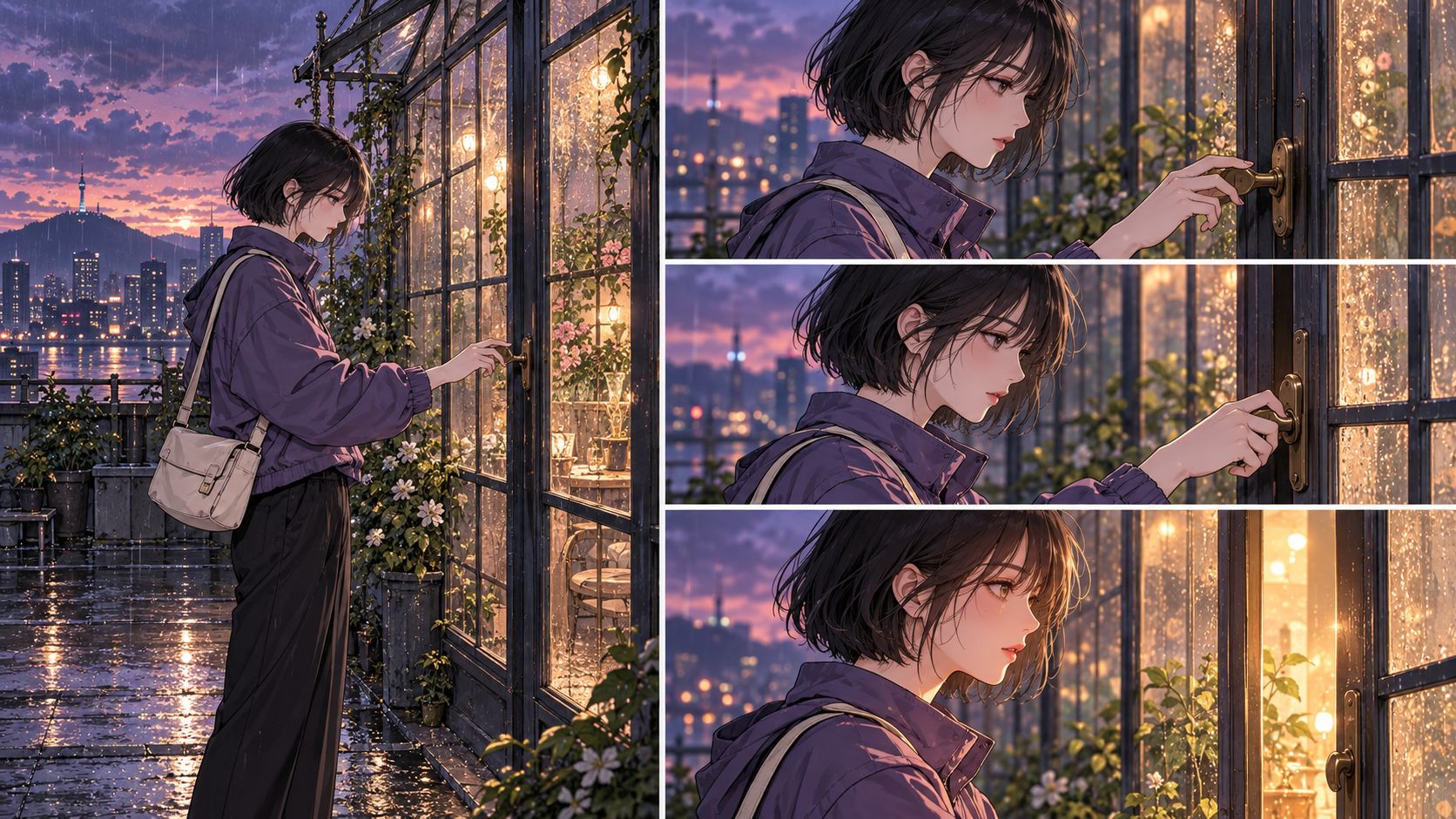
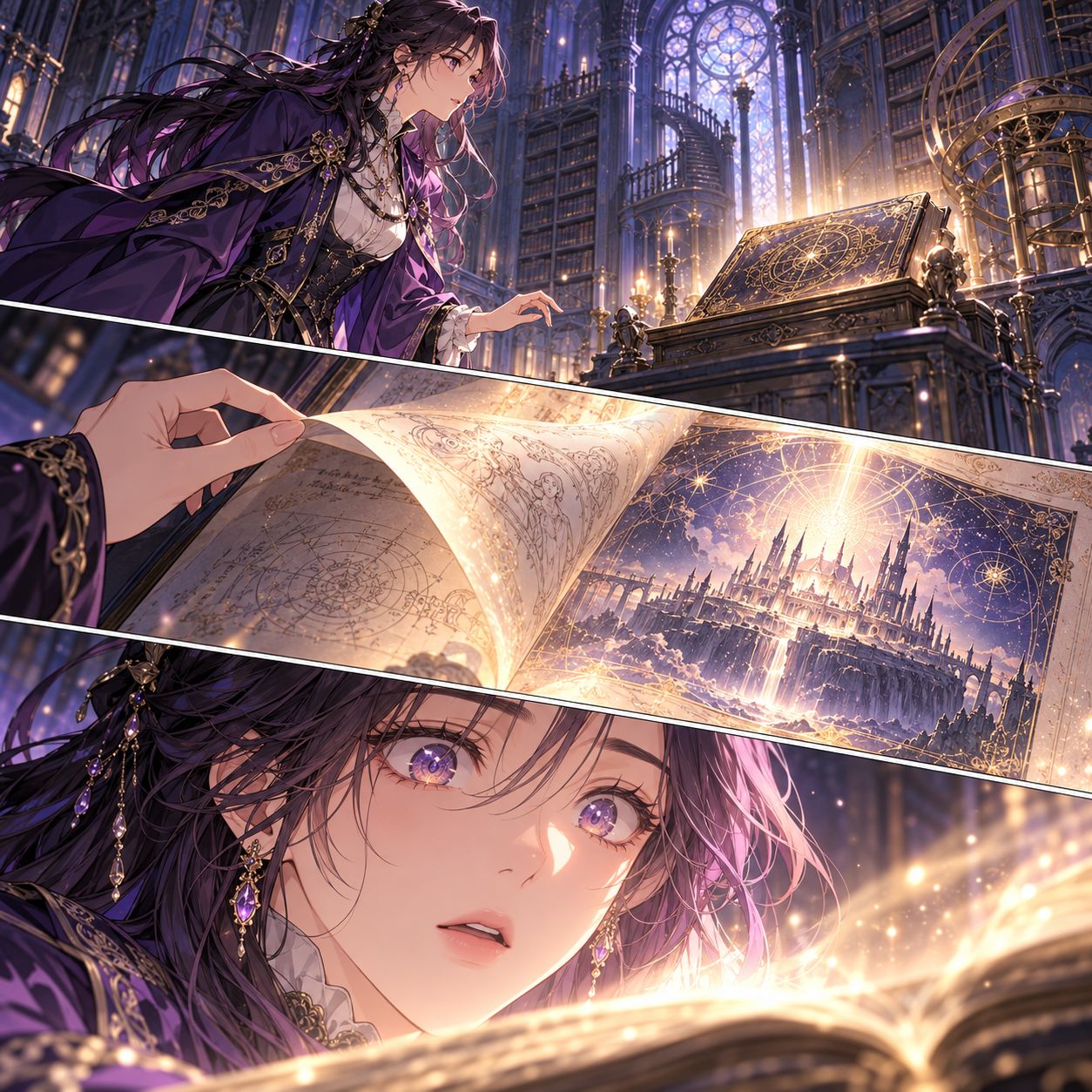
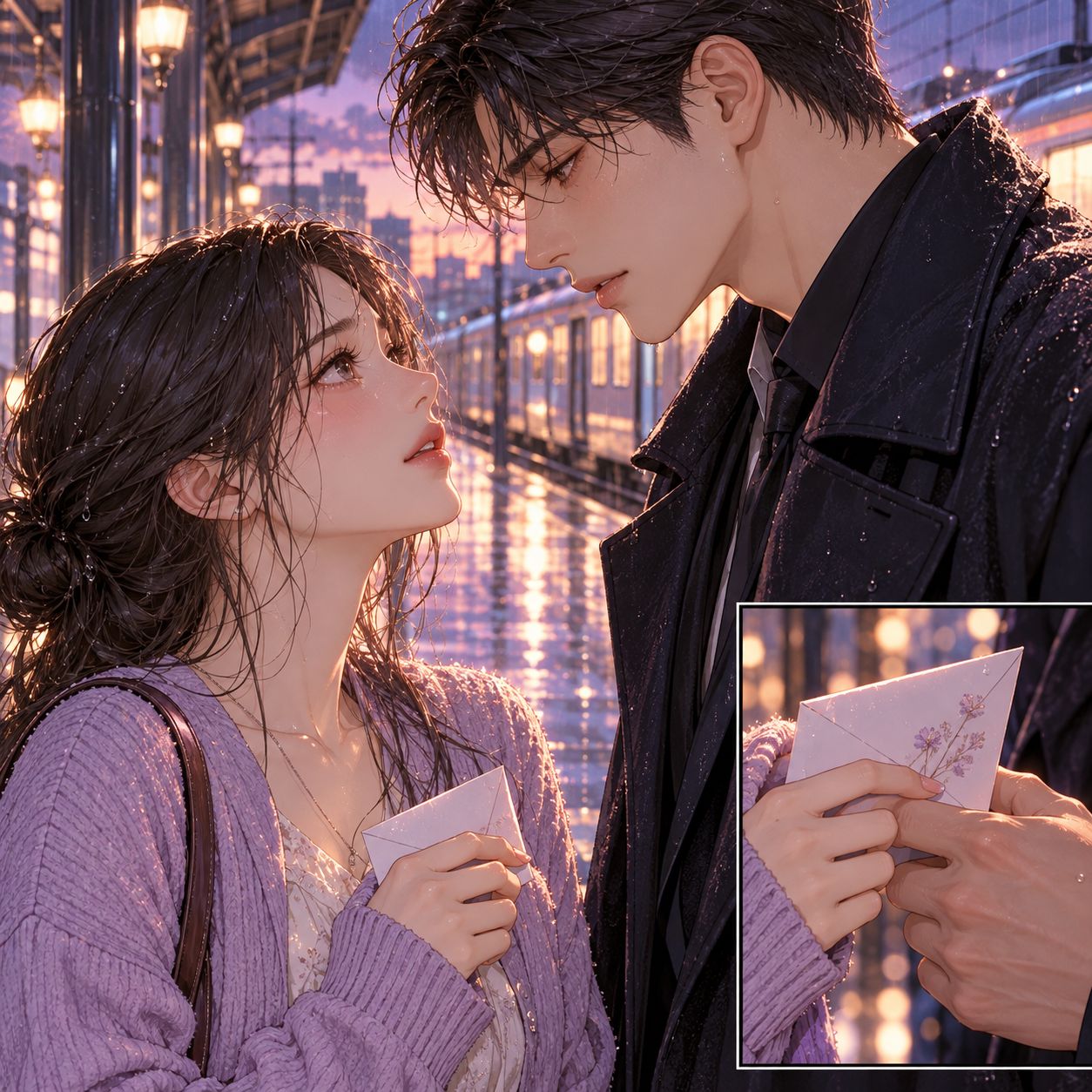
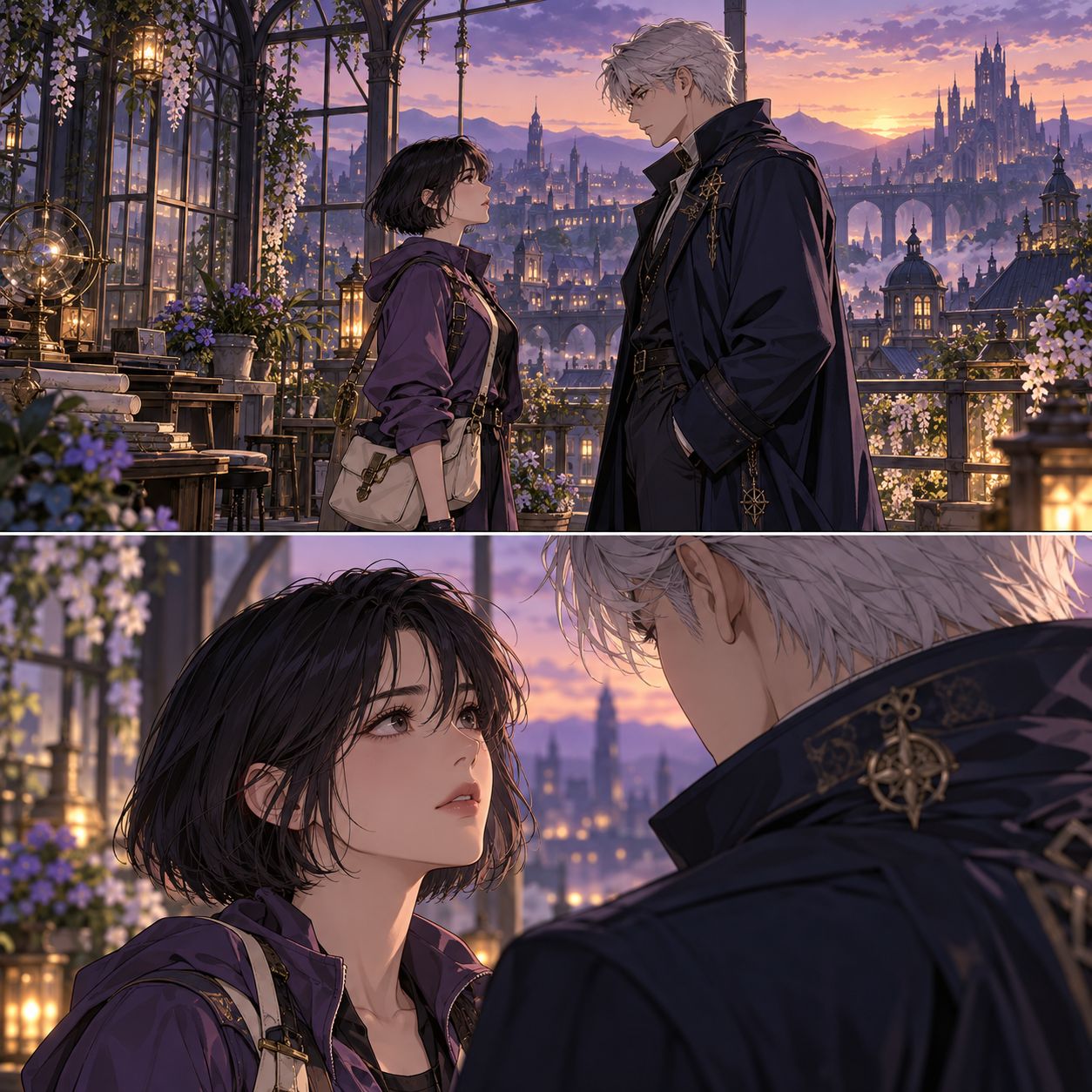
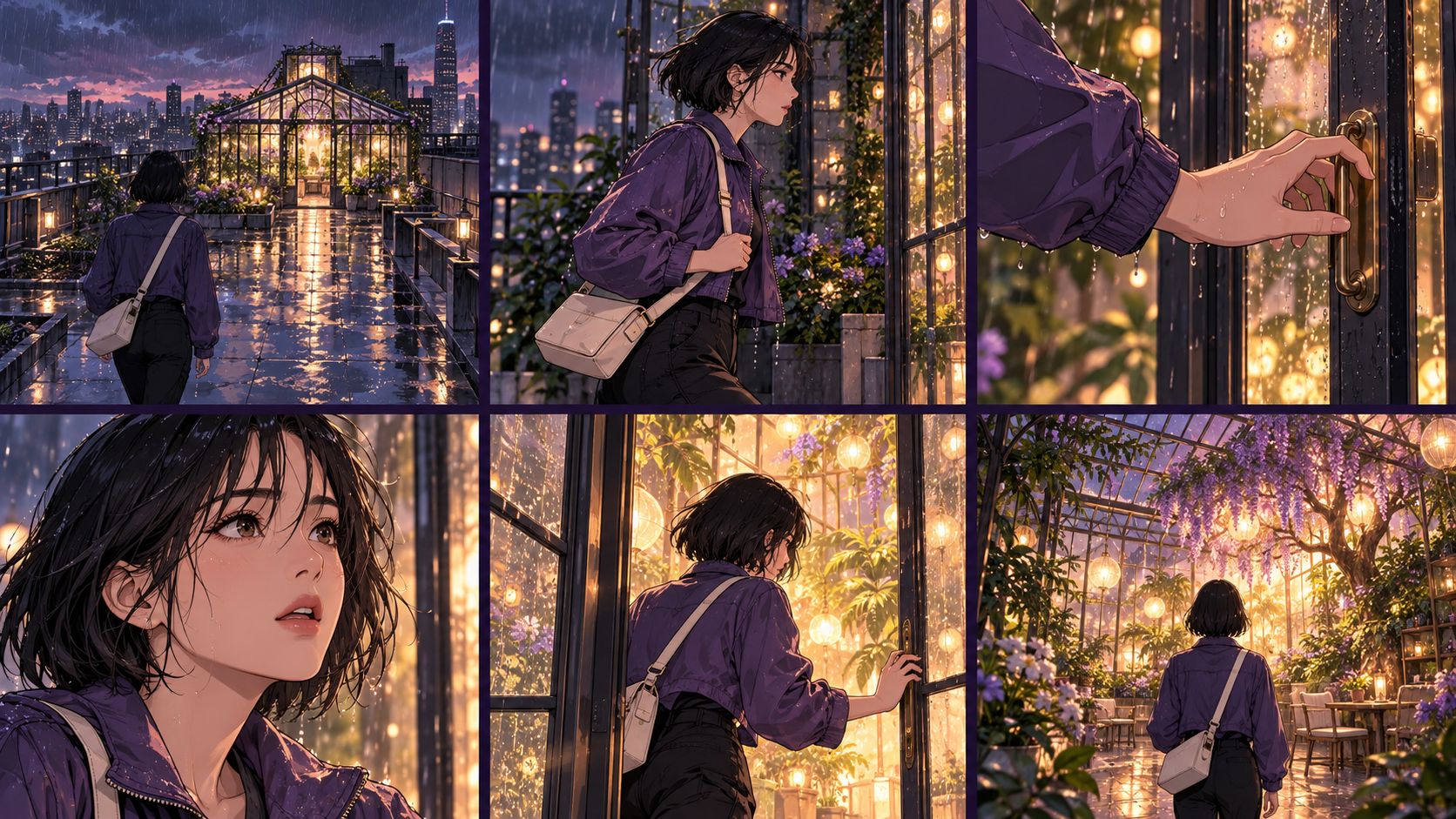
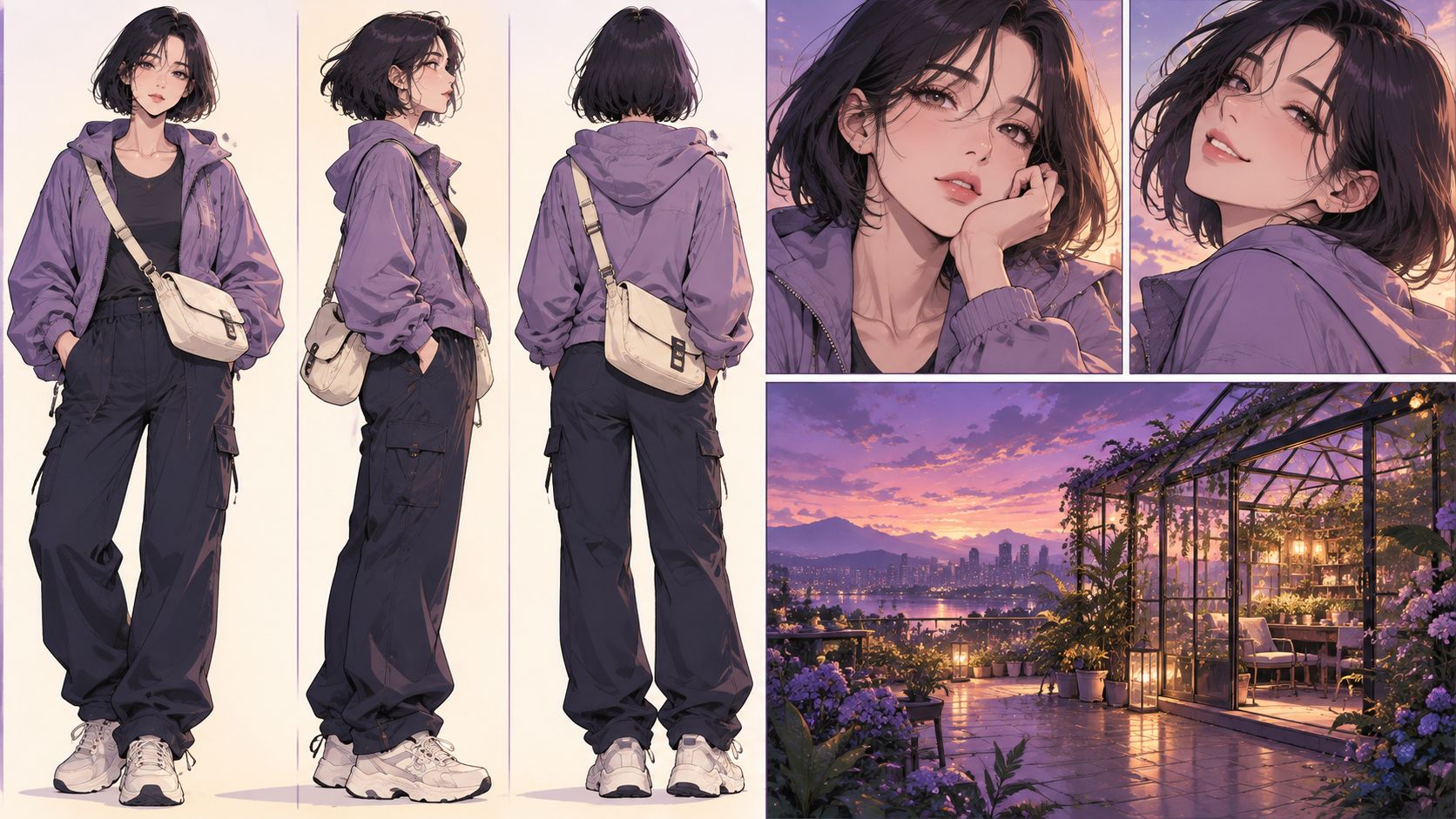
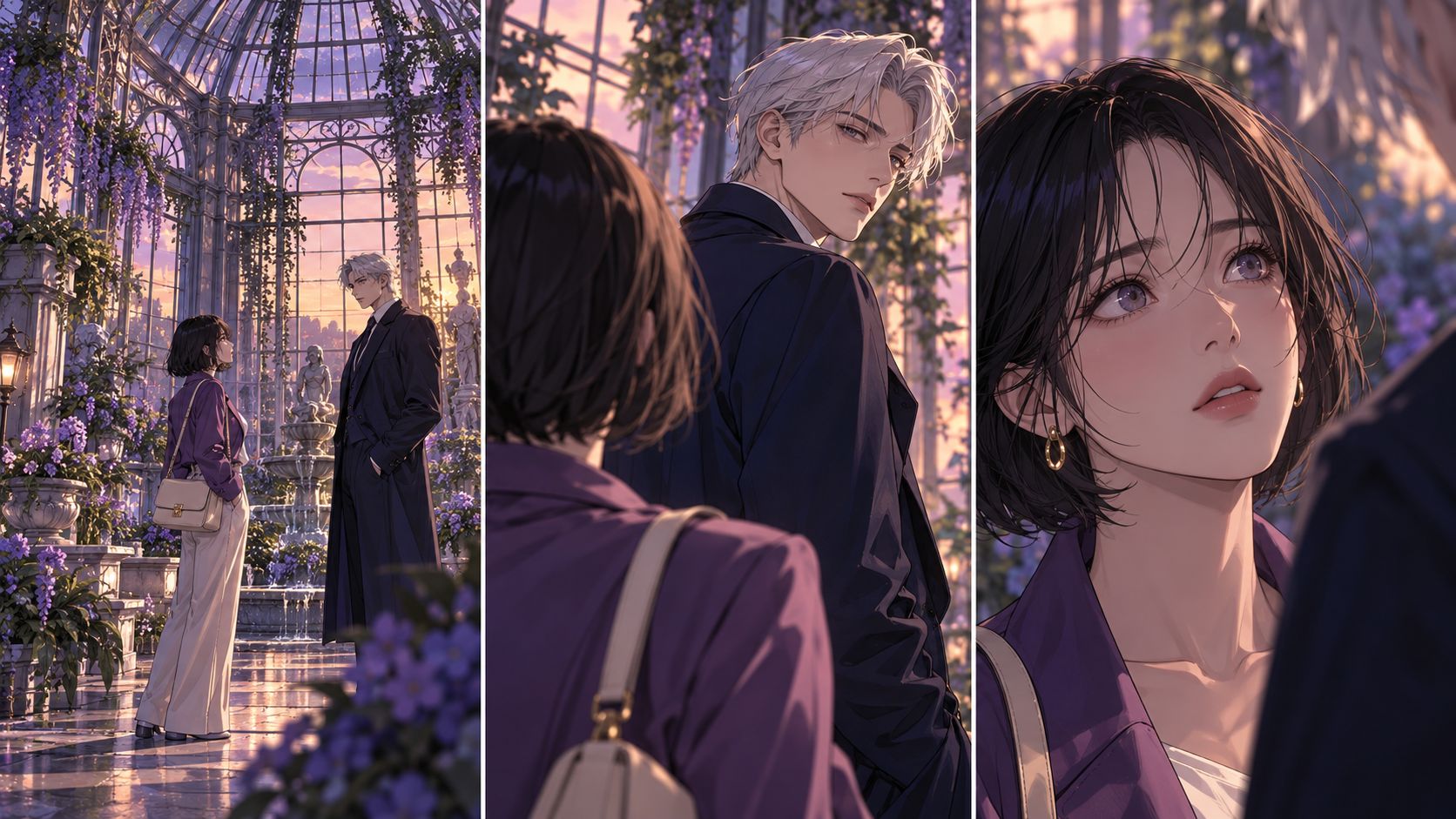
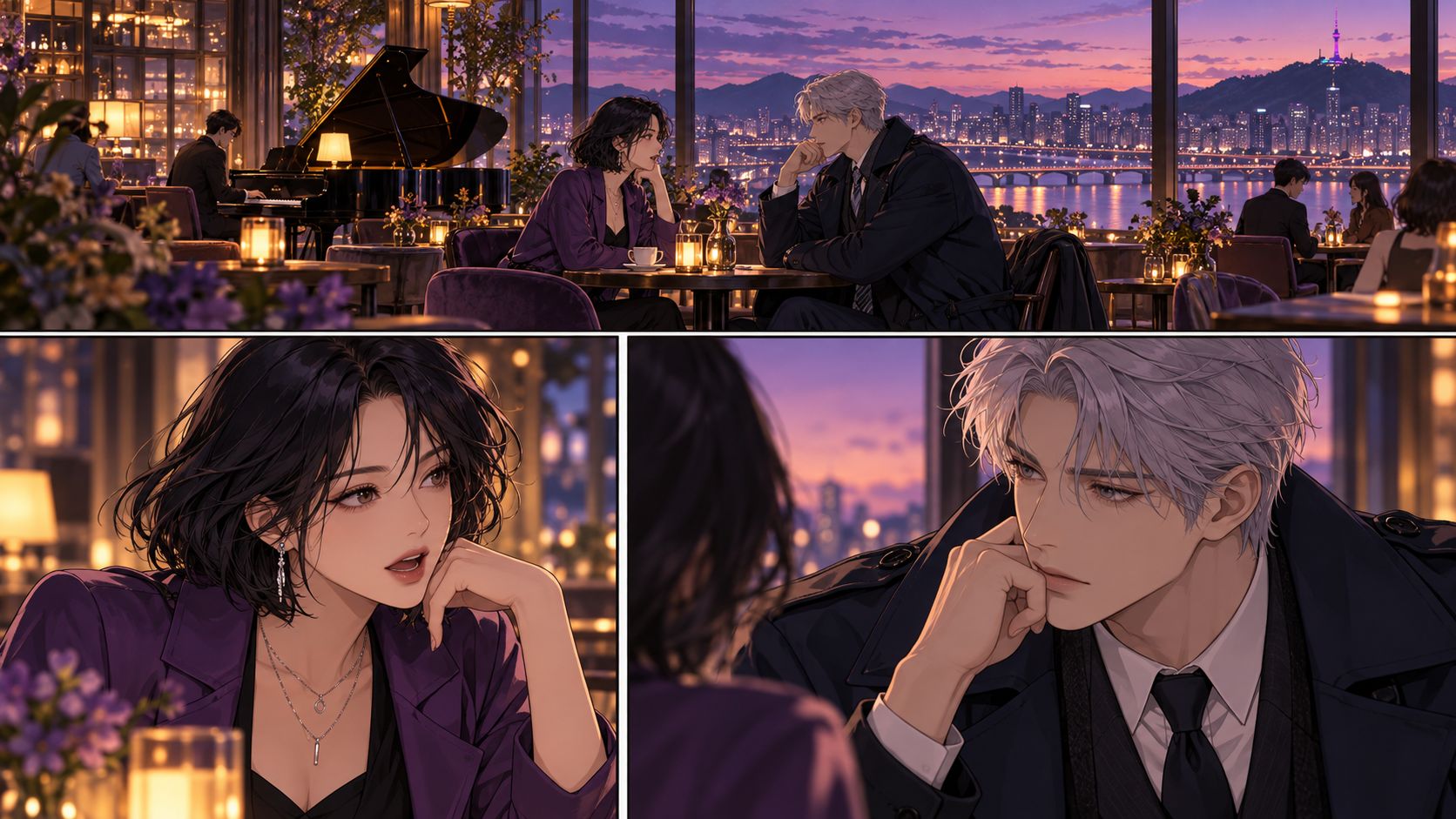
The animation copilot for webtoon authors, comic creators, and indie storytellers who want to adapt their artwork into anime. Upload your vertical comic strips or standalone panels to generate natural character movement, eye blinks, and dynamic camera motion in seconds. Keep your original art style intact and ready for social sharing.
Comic Panel to Anime Motion Examples
See how static comic illustrations translate into video clips with natural physics, intact line work, and camera motion.
What You Can Create with Webtoon to Animation AI
Manga and Manhwa Recap Videos
YouTube recap channels and Tiktok shorts can convert chapter artwork into moving b roll to support narration. Adding natural character motion and active camera tracking keeps audience attention focused throughout long explainer videos.
Webtoon Chapter Teasers
Vertical short videos showcase key emotional turning points for weekly chapter updates. Combining subtle motion with background audio gives mobile video feeds an immediate visual hook.
Episodic Story Scenes and Pilots
Sequential scenes come together into continuous narrative moments featuring dialogue timing and camera direction. Creators can evaluate overall pacing and present working animatics to potential production partners.
Key Features of the Comic to Animation Pipeline
Transform Comic Panels into Storyboard Sequences
Organize your comic artwork into an episodic storyboard sequence. The AI arranges chapter panels into structured visual cards, giving you a clear layout to sequence individual shots and plan full episode story arcs before rendering video.
Keep Characters and Backgrounds Consistent Across Shots
Lock facial traits, clothing details, and environmental backgrounds using centralized character reference sheets. Your cast maintains uniform visual identity across every panel, episode, and season, keeping character scenes and action sequences faithful to your original art.
Apply Camera Angles with Ready Prompt Templates
Direct camera movement and dynamic action without writing complicated prompt text. Choose from prebuilt prompt templates that automatically configure camera angles, zoom depth, and motion pacing for each individual shot card.
Generate Video with Integrated Voice and Music
Produce animated video clips with matching character voiceover and background music natively within the platform. Dialogue timing aligns directly with on screen character reactions, delivering complete video sequences without relying on external sound editing tools.
How to Animate Webtoons in 3 Steps
Upload and Analyze Your Comic Artwork
Add your comic pages, vertical strips, or individual illustration files to the workspace. The platform reads the uploaded artwork to detect scene boundaries, dialogue text, and composition elements, laying the foundation for your storyboard.
01
Create Anime Characters and Backgrounds
Establish character reference sheets to keep facial features, outfits, and styling consistent throughout the sequence. You can also configure environment backgrounds to make sure each scene carries the correct lighting and visual tone.
02
Generate Anime Images and Video
Select prewritten camera prompt templates to direct movement, angles, and pacing for each shot. Once the image panels look ready, the system renders final anime video clips complete with character voiceover and background sound.
03
Practical Tips for Comic Creators
Tip 1: Start with a Short Scene
Begin with a simple conversation or character reaction to test the workflow. Keeping panel order clear and focusing on a single movement per shot lets you evaluate visual rhythm before expanding into longer chapters.
Tip 2: Set Clear Character and Background References
Upload reference images that display distinct facial features, costume details, and setting colors. Using consistent naming for each cast member and location helps the AI maintain visual continuity across every shot card.
Tip 3: Review Storyboard Panels Before Video Generation
Examine camera framing, facial expressions, and eye line direction on your visual board first. Adjusting individual shot cards early preserves generation credits and ensures smooth dialogue timing when rendering final video clips.
Pricing and Credit Usage
Plan the assets, storyboard images, video clips, and sound your scene needs. Credit costs depend on the model and generation settings; the examples below help you estimate each stage.
Production Stage
Credit Cost
What to Plan For
Character and Other Assets
Credits depend on the model and settings, such as 60 credits per image for GPT Image 2.
Reference images for your characters, locations, and props, including the visual details each scene needs.
Storyboard Images
Credits depend on the model and settings, such as 60 credits per image for GPT Image 2.
Storyboard panels that establish each shot’s framing, character positions, and background.
Animated Video Clips
Credits depend on the model and settings, such as 650 credits per 5-second video with MiniMax H3 at 2K.
The final video clips for your scene, including the number of shots and the duration of each clip.
Voiceover and Music
Credits depend on the model, settings, and audio duration.
Character voiceovers and background music for your video clips.
How do I animate a manga or webtoon panel without changing its art style?
Use the original panel as a visual reference and describe a small movement, such as a blink, a slight head turn, or hair moving in the breeze. Keep the character design, colors, and line work in your shot description. Review a short clip first and refine the prompt if the motion changes details you want to preserve.
What should I write in a prompt to add subtle motion?
Describe what moves, what stays still, and how the camera behaves. For example: The character blinks once, a light breeze moves her hair, and the camera slowly pushes in. Keep her pose and the background still. Start with one main action per shot, then adjust the movement after reviewing the result.
How can I keep the same character across different shots?
Reuse the same character reference sheets and keep names, outfits, hairstyles, and distinguishing details consistent in your descriptions. Link each shot to the relevant character and setting references. Check the storyboard for changes in faces, clothing, and backgrounds before generating video, and revise individual shots where needed.
Should I animate a whole chapter or start with individual panels?
Start with a short scene and select the panels that show its main story beats. Add the panels as references and explain their reading order, dialogue, and actions. Review the resulting shots in the workspace before expanding to the next scene. This gives you a manageable sequence to check for pacing and continuity.
How should I handle speech bubbles and dialogue?
Use artwork without speech bubbles when you have a clean version available, and provide the dialogue separately as text with speaker names. Plan enough time for each line and the character’s reaction. Keeping the artwork and dialogue separate makes it easier to revise framing, narration, and timing as you build the scene.
How do I make separate comic panels connect into a smooth scene?
Describe the action between panels, including where a character moves, what they look toward, and how the next shot continues the moment. Keep screen direction and locations consistent across related shots. Review the storyboard in order, add a transition shot where the action needs one, and test the sequence with short clips before generating more.
How much does it cost to animate my webtoon?
The total cost depends on your full creation workflow, from character and other asset references to storyboard images, final video clips, and audio. Each stage uses credits based on the model and settings you choose. For example, GPT Image 2 costs 60 credits per image for character, location, or prop references and storyboard images. For final video clips, MiniMax H3 at 2K costs 650 credits per 5-second video. Other models and settings have different costs. See our pricing plans and credit details for more information.