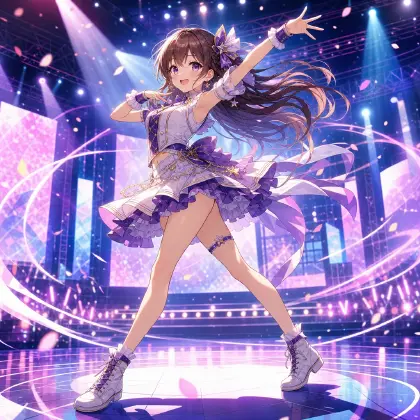




What are assets?
Assets are creative elements you reuse in Arcloop.
An asset can be a character, a prop, a scene, or a group of visual references. You can bind images, videos, audio, and character voices to assets so the Agent can keep your stories, storyboards, and videos more consistent.
For example, if you create a character asset for "Zhen Huan" inside an IP world, the Agent can continue creating around her appearance, costume, personality, voice, and reference images across different episodes and storyboards.
What types of assets can you manage?
In Arcloop, you can manage these asset types:
- Characters: people in the story, such as leads, supporting characters, or narrators
- Scenes: places where the story happens, such as a bedroom, imperial garden, street, or classroom
- Props: objects that characters use or that appear repeatedly on screen
- Visual references: reference images that help the Agent understand style, composition, and mood, such as action designs or storyboard compositions
- Images, videos, and audio: uploaded or generated media files that can be bound to specific assets
When should you create an asset?
When an element will appear repeatedly across multiple storyboards, episodes, or videos, it should become an asset.
If you want to generate videos with the Seedance 2.0 series or Kling O3 series, create it as an asset first.
How do you create an asset?
After entering the current IP world, open My Assets.
You can create:
- Characters
- Scenes
- Props
- Visual references
When creating an asset, it is helpful to fill in:
- Name: makes it easy for you and the Agent to identify the asset
- Description: explains what it is, what it looks like, and how it should be used
- Reference images: help the Agent understand appearance and visual style
- Character voice: for character assets, you can add or select a voice
- Main image: the first image becomes the primary visual reference for the asset
Example:
Zhen Huan is young, intelligent, gentle on the outside, and resilient inside. Her early look is elegant and restrained, with clean makeup, light-colored clothing, and a subtle, delicate presence.
How do you bind media to an asset?
You can bind images to characters, scenes, props, or visual references.
On an image asset card, select Bind Asset, then choose the target asset.
After binding, that image becomes reference material for the asset.
Binding has two common uses:
- Main image: the most important visual reference for the asset
- Reference image: extra angles, outfits, states, or moods
For example, the character asset "Zhen Huan" can include:
- One main visual
- Several outfit references
- Character images in different emotions or scenes
- A character voice
This helps the Agent keep the character consistent when generating storyboards or videos.
How do you manage assets?
On the assets page, you can:
- Create new assets
- View assets by character, scene, prop, or visual reference
- Edit asset names and descriptions
- Add or remove reference images
- Set the main image
- Add or change a character voice
- Create different looks for a character, such as a new outfit or style
- Select and delete assets in bulk
How do you delete assets?
You can delete a single asset or delete multiple assets in bulk.
Before deleting, make sure the asset will not be used in future stories, storyboards, or videos.
After an asset is deleted, its management relationships are removed. This action cannot be undone.